Android Chat App Development
Chat applications are an essential part of modern communication. Whether you’re building a personal messenger or a group chat platform, Android provides the flexibility and tools required for creating robust applications. This guide covers everything from UI to real-time backend integrations.
Why Build Your Own Chat App?
- Full control over user experience
- No dependency on third-party services
- Custom features tailored to your needs
- Opportunity to learn Android development deeply
Tools and Technologies Required
Before you start, ensure you have the following tools:
- Android Studio
- Java or Kotlin (Kotlin is now preferred)
- Firebase Realtime Database or Firestore
- Firebase Authentication
- Gradle
- XML for UI design
Step-by-Step Guide to Building the Chat App
1. Set Up Android Studio
Install and launch Android Studio. Create a new project and choose “Empty Activity”. Use either Kotlin or Java. Name your project something like ChatApp.
2. Add Firebase to Your Project
Go to the Firebase Console and create a new project.
- Connect your app to Firebase via Android Studio
- Add Firebase Authentication
- Add Firebase Realtime Database or Firestore
- Sync Gradle after adding necessary dependencies
3. Design the User Interface
Use XML layout files to create:
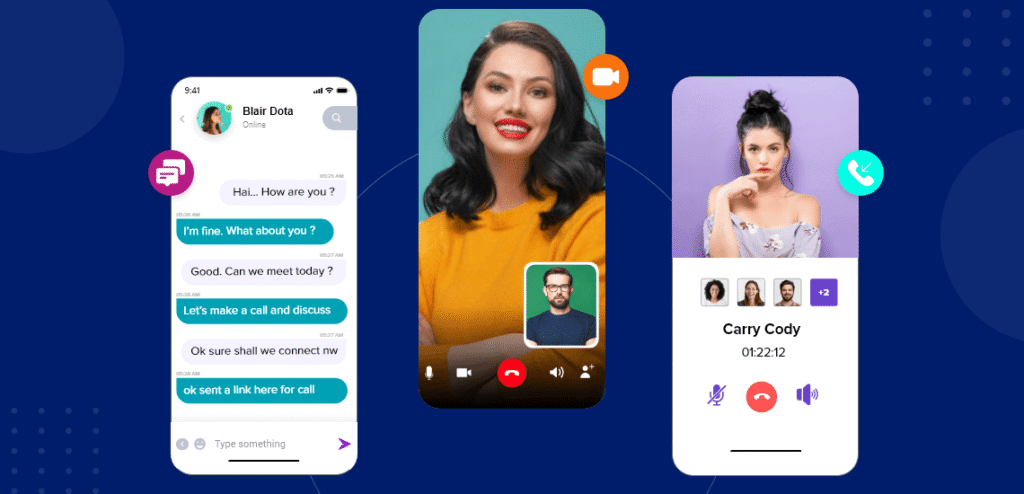
- Login Screen – For user authentication
- Registration Screen – New users can sign up
- Main Chat Screen – Shows list of users
- Message Screen – Chat interface between users
Keep UI intuitive. Use ConstraintLayout for a responsive design.
4. Implement Firebase Authentication
Allow users to register and sign in using email/password or Google sign-in.
FirebaseAuth.getInstance().signInWithEmailAndPassword(email, password)Use FirebaseAuth.AuthStateListener to detect login status and navigate to the correct screen.
5. Set Up Realtime Database or Firestore
Choose one of the two Firebase databases:
- Realtime Database – Lightweight and ideal for basic messaging
- Cloud Firestore – More scalable and structured for larger apps
Structure your database like:
Users |- uid |- name |- emailChats |- chatId |- senderId |- receiverId |- message |- timestamp6. Send and Receive Messages
Build message sending logic:
- Capture message input from user
- Push to Firebase under
Chats - Add RecyclerView to display messages
- Use Firebase listeners (
ChildEventListener) for real-time updates
Make sure messages appear instantly with smooth animations and auto-scroll.
7. Add Push Notifications (Optional)
For real-time alerts when users receive new messages:
- Use Firebase Cloud Messaging (FCM)
- Create notification channels for Android 8.0+
- Trigger FCM from Firebase Functions or directly from the app
8. Secure the Chat App
- Use Firebase Rules to control database access
- Validate user data input
- Encrypt sensitive data if required
- Add logout and session timeout features
Extra Features to Add
Once your basic chat app is working, consider adding:
- Profile pictures and usernames
- Chat history search
- Message read/unread status
- Emoji or GIF support
- Image and file sharing
- Group chat functionality
- Voice/video call integration (using WebRTC or third-party SDKs)
Best Practices for Android Chat Development
- Use background services efficiently
- Don’t keep listeners active unnecessarily
- Handle exceptions gracefully
- Test on multiple devices and screen sizes
- Use
ViewModelandLiveDatafor better architecture
FAQs
Q1: Can I build a chat app without Firebase?
Yes, you can use your own backend with sockets (e.g., Node.js with Socket.IO), but Firebase speeds up development.
Q2: Is Kotlin better than Java for chat apps?
Yes. Kotlin offers cleaner syntax and is now the official Android language.
Q3: How to make the chat app work offline?
Use Firebase’s offline capabilities or implement local storage with Room Database.
Q4: Can I monetize my chat app?
Yes. You can add ads, premium features, or subscription models using Google Play Billing.